
Sharing
Publish a read-only view of your flights through a public link.
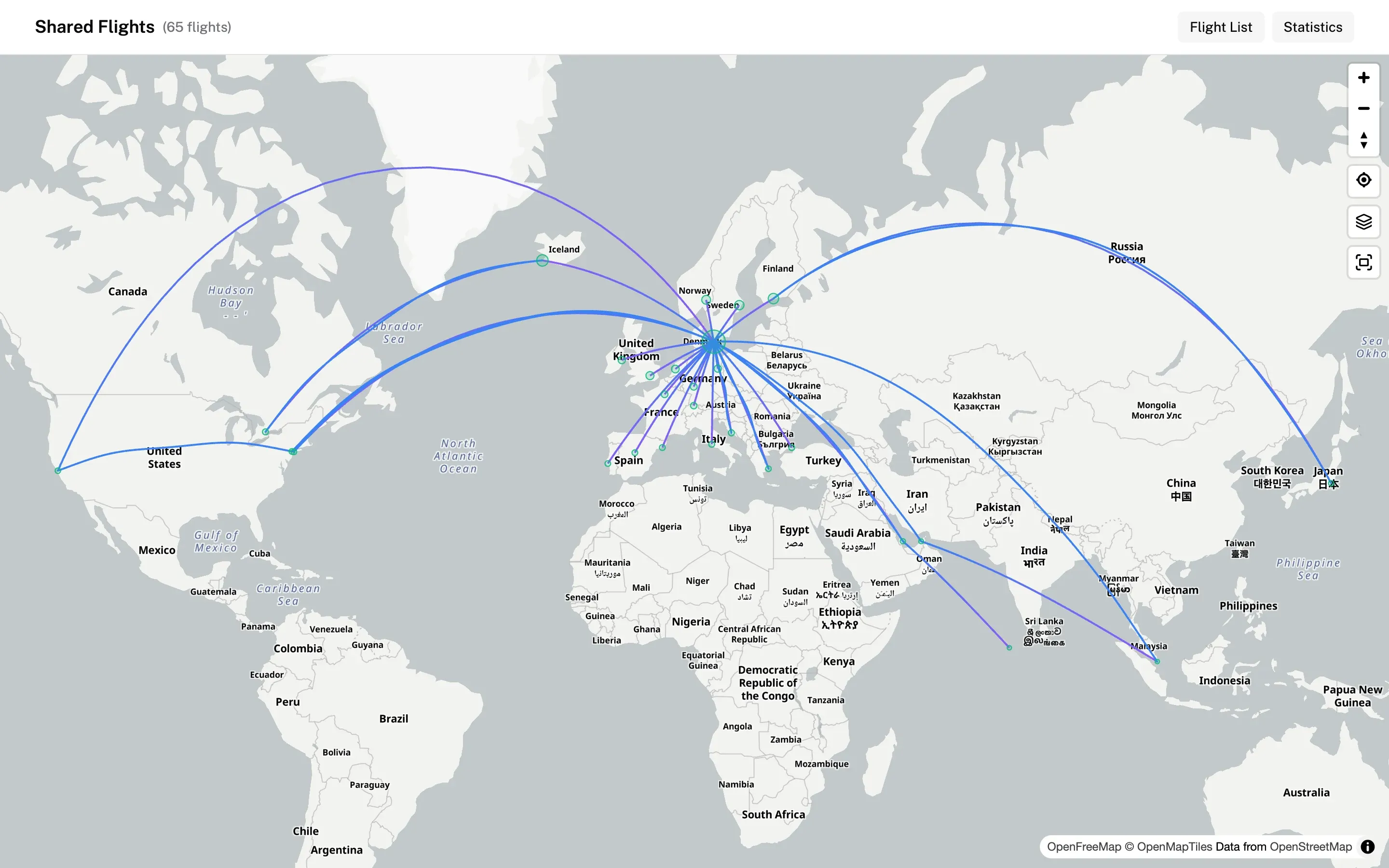
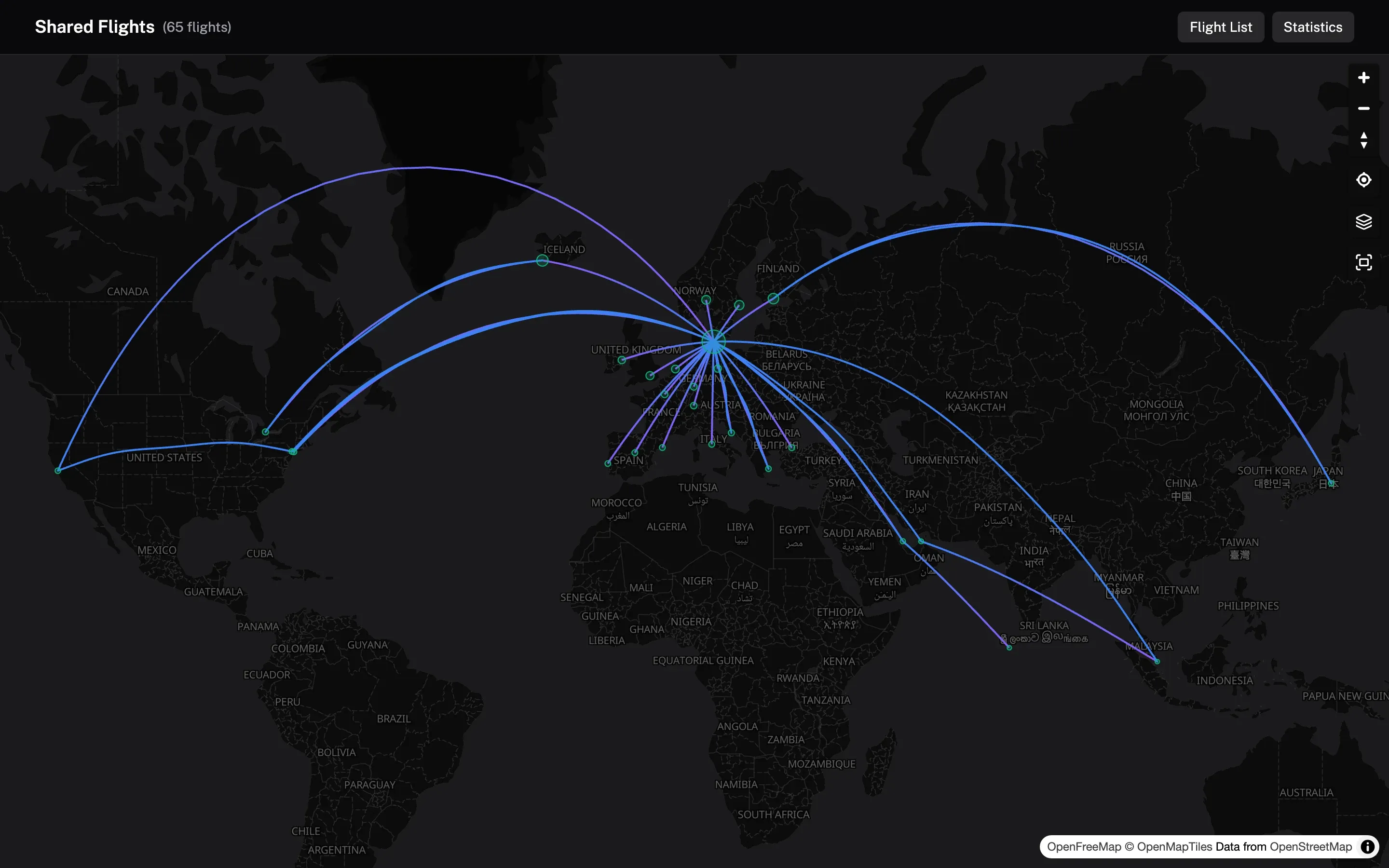
A public share is a link that anyone can open without an AirTrail account. It shows your flights on a map, and optionally a flight list and statistics. You choose which details are visible.
Who can create shares
Creating and editing shares requires the flight.share.own permission, together with flight.read.own. Roles are managed under Settings > Roles.
Every user sees the Share page in settings. If your role cannot publish flight data, the page shows a notice instead of the Create button. Existing links stop working while the role lacks the permission, but you can still delete them.
The same check runs when a visitor opens a link. If the share owner loses the permission, their links return "not found" until it is restored.
Create a share
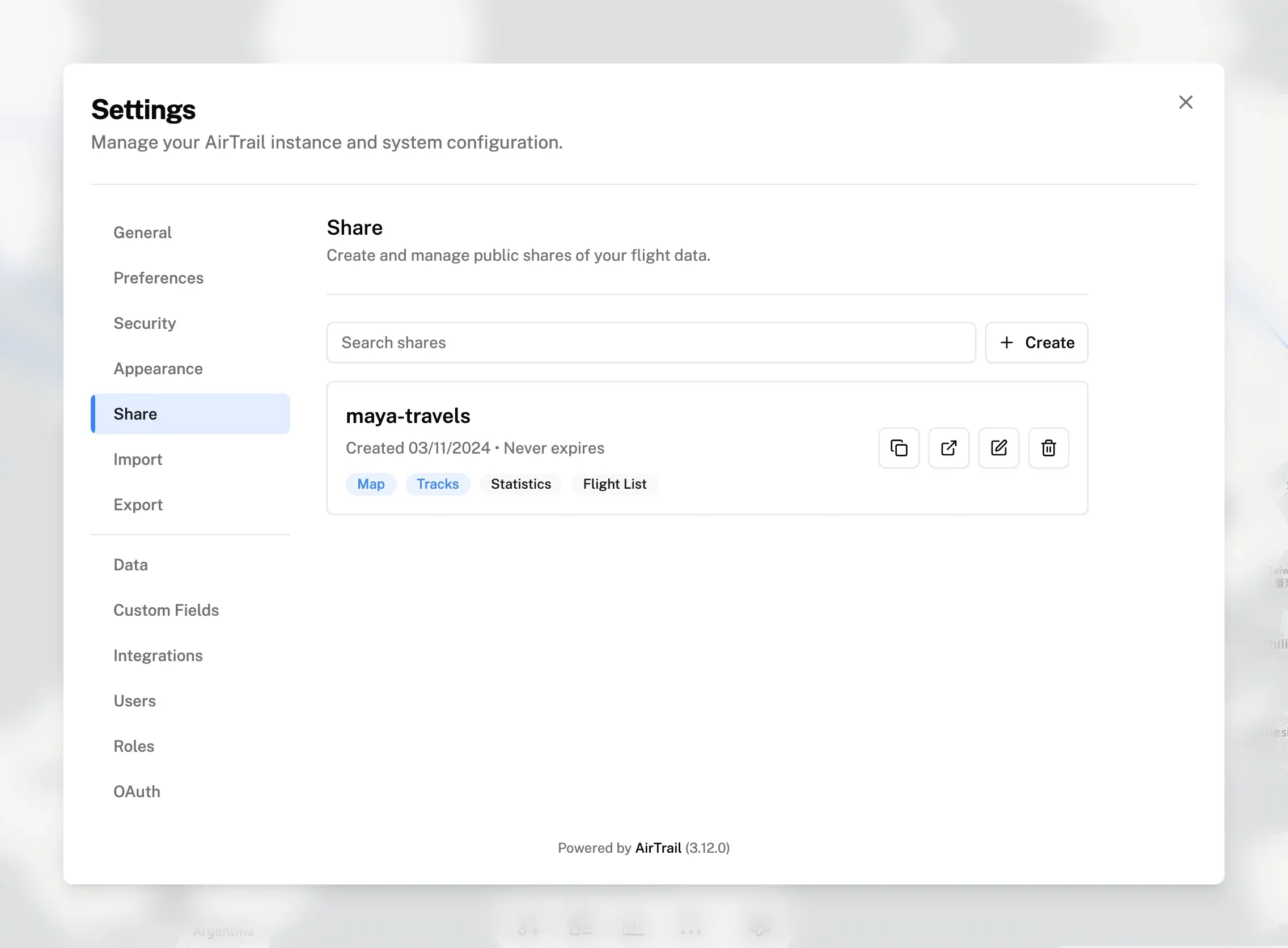
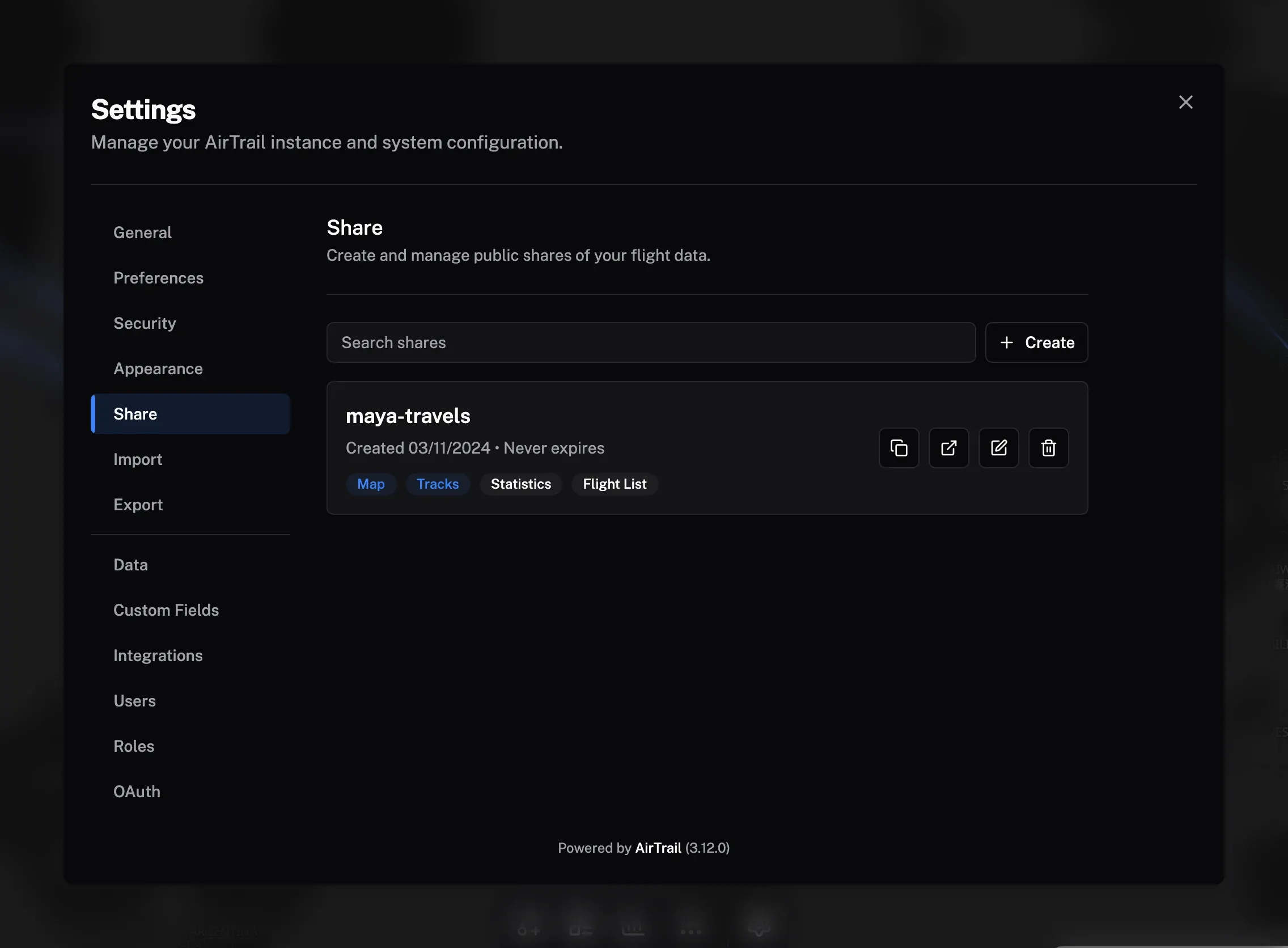
- Open Settings > Share.
- Click Create.
- Fill in the form described below.
- Click Create.
The new share appears in the list with badges for the enabled content: Map, Tracks, Statistics, Flight List, and Date Filtered. Use the buttons next to a share to copy its URL, preview it in a new tab, edit it, or delete it.
Share URL
The share is served at /share/<slug>. Enter your own slug or click Generate to create a random 12-character one.
A slug:
- is required,
- can contain letters, numbers, hyphens, and underscores,
- can be at most 50 characters long,
- must be unique across the instance.
Anyone who knows or guesses the URL can open the share. Use a generated slug if the link should be hard to guess.
Share Duration
| Option | Expires |
|---|---|
| Never expires | Never |
| 1 day | 24 hours after saving |
| 1 week | 7 days after saving |
| 1 month | 30 days after saving |
| 3 months | 90 days after saving |
| Custom date | On the date picked in Expires At |
Expired shares stop working immediately and are removed the next time a share list is loaded.
When you edit a share that has an expiry, the form shows it as Custom date. Choosing a relative option again counts from the moment you save.
Date Range (Optional)
Set a start date, an end date, or both to limit the share to flights in that range. Both ends are inclusive and compare against the flight date. Leave the range empty to include all flights.
Content Visibility
| Option | Default | Effect |
|---|---|---|
| Show Map | On | Shows the flights on a map. |
| Show Exact Tracks | Off | Draws uploaded flight tracks on the map. |
| Show Statistics | Off | Adds a Statistics button that opens the statistics view. |
| Show Flight List | Off | Adds a Flight List button that opens a read-only list of the flights. |
Show Exact Tracks requires Show Map. The checkbox is disabled while the map is off, and AirTrail turns it off when the map is turned off. When tracks are hidden, the map draws the usual airport-to-airport arcs instead.
Data Privacy
| Option | Default | Hidden when off |
|---|---|---|
| Show Flight Numbers | On | Flight numbers |
| Show Airlines | On | Airlines |
| Show Aircraft Types and Tail Numbers | Off | Aircraft type and registration |
| Show Flight Times | Off | Departure, arrival, scheduled, takeoff, and landing times, and track timestamps |
| Show Flight Dates | On | Flight dates |
| Show Seat | Off | Seat type, seat number, and seat class |
Airports and flight durations are always included. Notes, terminals and gates, custom fields, and other passengers on your flights are never shared.
What visitors see
A share includes only flights on which you are a passenger. Visitors do not need to sign in and cannot change anything.
- With Show Map on, the page opens on a full-screen map of the flights.
- With Show Flight List or Show Statistics on, a bar at the top shows Shared Flights, the number of flights, and buttons for the enabled views. The statistics view has no filters and leaves out country statistics.
- With the map off, the page shows a summary with the number of flights.
- If no flights match the share settings, the page shows No Flights to Display.
Tracks on a shared map are simplified for display in the same way as on your own map.
API
Shares can also be managed with the v1 REST API or the MCP server:
| Method | Endpoint | Scope |
|---|---|---|
GET | /api/v1/shares | shares.read |
POST | /api/v1/shares | shares.write |
PUT | /api/v1/shares/{id} | shares.write |
DELETE | /api/v1/shares/{id} | shares.write |
Both scopes require the flight.share.own permission. The API takes the same fields as the form, with two differences: expiresAt is an ISO 8601 date-time instead of a duration option, and a random slug is generated when slug is omitted. PUT replaces the whole share: fields you leave out return to their defaults.
Last updated on