
API Keys and Connected Apps
Give scripts, integrations, and MCP clients limited access to your account.
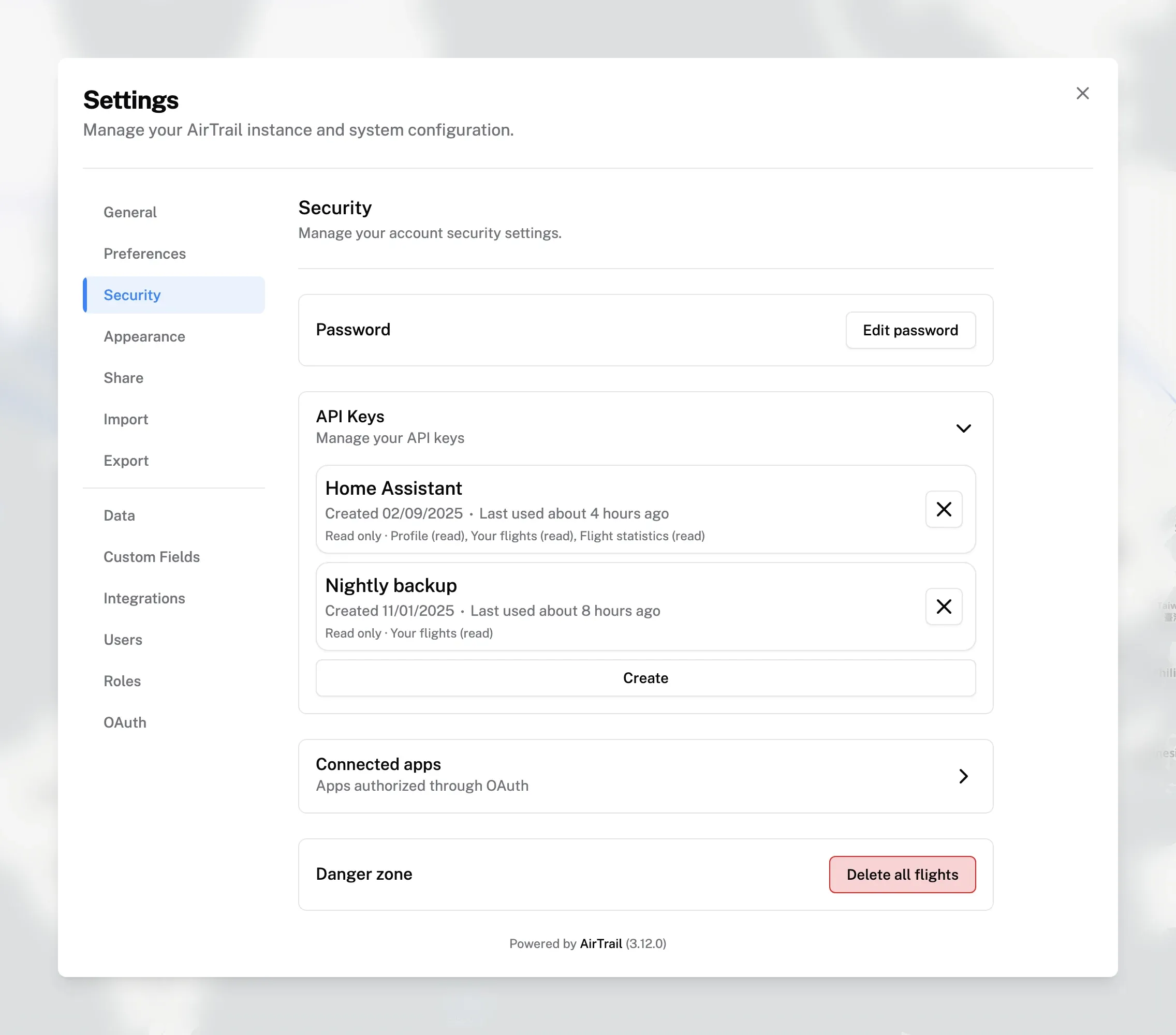
API keys and connected apps let other software use AirTrail on your behalf. Both are managed under Settings → Security, and both only work for your own account.
- An API key is a secret token you create and paste into a script or integration.
- A connected app is an application you approved through AirTrail's OAuth consent screen, such as an MCP client.
See API getting started for how to call the API, and Model Context Protocol for MCP clients.
How access is limited
Every request made with an API key or a connected app must pass two checks:
- Your current role must allow the action.
- The key or app must have the required scope.
Scopes are a ceiling. A key never grants more than your role allows, even if it has the scope. If your role later loses a permission, keys and connected apps lose it too. If your role gains a permission, existing keys do not gain it unless they already have the matching scope.
Creating an API key
- Go to Settings → Security and expand API Keys.
- Click Create.
- Enter a Name that describes where the key will be used.
- Choose the scopes (see below).
- Click Create key.
The key is shown once. Copy it and store it somewhere safe. AirTrail only keeps a hash of the key, so it cannot show it again. If you lose it, delete the key and create a new one.
Treat an API key like a password. Anyone with the key can act as you within its scopes. Do not commit it to source control or share configuration files that contain it.
Send the key as a bearer token:
Authorization: Bearer YOUR_API_KEYChoosing scopes
The scope picker starts with an Access template:
- Read only selects every read scope your role allows. This is the default.
- Full access selects every scope your role allows.
The number next to each template is the number of scopes it selects. Change any checkbox and the template becomes a custom selection.
Below the templates, Permissions lists the scopes in collapsible groups. Each row has a Read and/or Write checkbox. Checking Write also checks Read on the same row. Use the search box to filter by name or description, and Select all or Deselect all to change everything at once. Only scopes your role allows are listed.
| Group | Row | Read | Write |
|---|---|---|---|
| Profile | Profile | profile.read | |
| Profile | Preferences | preferences.write | |
| Flights | Your flights | flight.read.own, flight.export.own | flight.create.own, flight.update.own, flight.delete.own, flight.passengers.manage.own |
| Flights | All flights | flight.read.any, flight.export.any | flight.create.any, flight.update.any, flight.delete.any, flight.passengers.manage.any |
| Flights | Flight tracks | tracks.read | tracks.write |
| Flights | Flight statistics | stats.read | |
| Reference data | Reference data | reference_data.read | |
| Personal data | Visited countries | visited_countries.read | visited_countries.write |
| Personal data | Public shares | shares.read | shares.write |
| Administration | Users | users.directory.read | |
| Administration | Roles | roles.manage | |
| Administration | Custom fields | custom_fields.read |
A .any flight scope also covers the matching .own scope. Some scopes need
more than one to be useful: statistics and flight tracks also need flight read
access, and writing tracks needs flight update access.
Grant only what the integration needs. A dashboard that shows your flights needs Read only; a script that logs new flights also needs Your flights write access.
Managing API keys
Each key in the API Keys list shows its name, when it was created, when it was last used, and a summary of its scopes. Hover over the summary to see the full scope list.
To delete a key, click the X next to it and confirm. Requests using the key stop working immediately. This cannot be undone.
API keys created before AirTrail added scopes were given a broad set of scopes during the upgrade. Review older keys and replace them with narrower ones where possible.
Connected apps
When an OAuth-capable application, such as an MCP client, connects to AirTrail, you see an Authorize application screen. It shows the application's name, the Redirect URI hostname, the Resource it wants to access, and a scope picker. The scopes the application requested are pre-selected. You can remove scopes or add others your role allows, then click Allow access or Deny.
Approved applications appear under Settings → Security → Connected apps. Each entry shows:
- the application name,
- the resource it was granted access to, such as your instance's
/api/mcpURL, and - a summary of the granted scopes.
To revoke an application, click the X next to it and confirm. AirTrail deletes the grant together with the application's access and refresh tokens. The application must go through the consent screen again to reconnect.
Last updated on