
Roles and Permissions
Control what each user can see and change in AirTrail.
Every AirTrail account is either the owner or has exactly one role. A role is a named set of permissions. AirTrail ships with two roles, User and Administrator, and you can edit them or add your own under Settings → Roles.
The owner
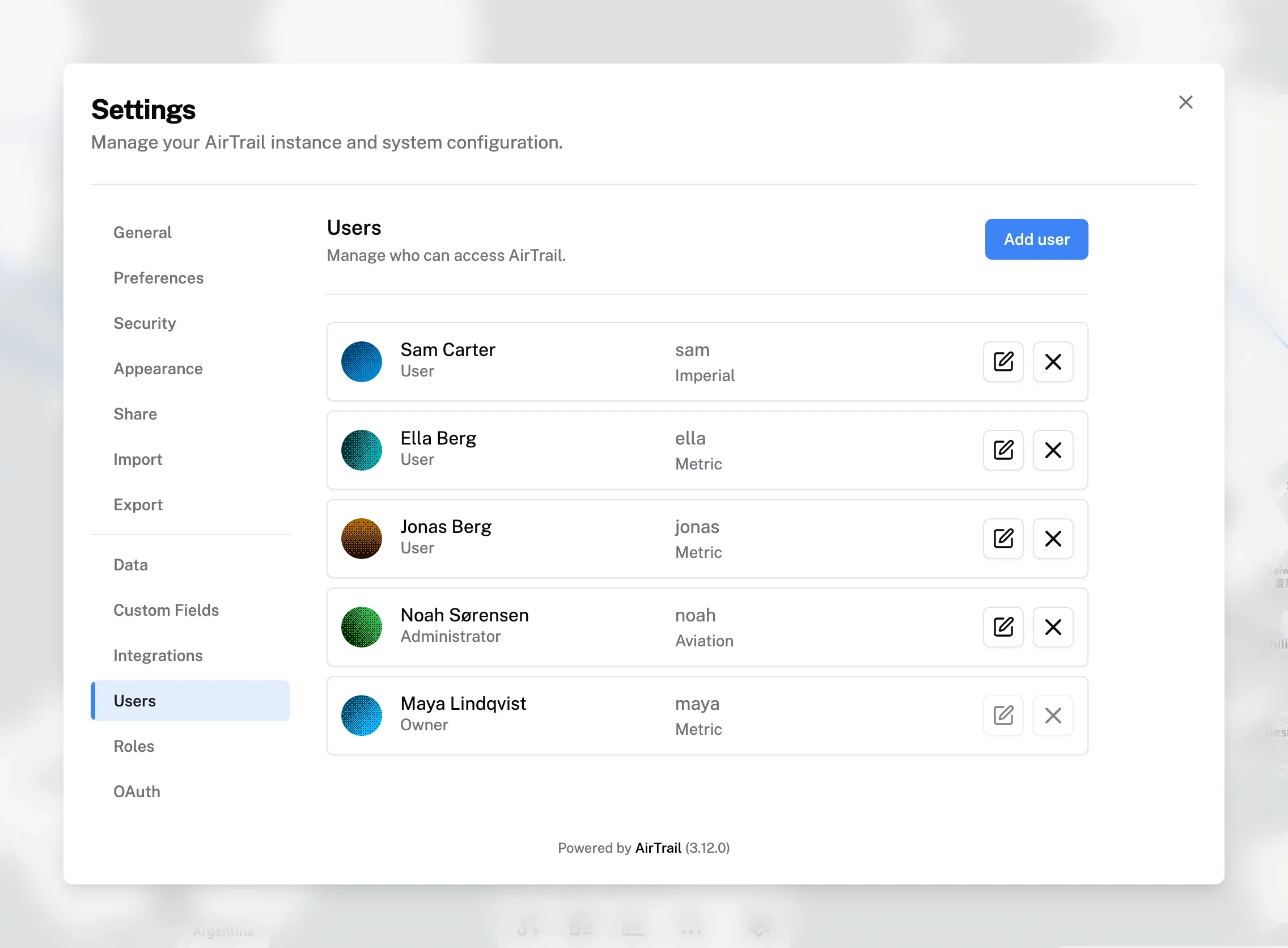
The first account created during setup is the owner. An instance has exactly one owner.
- The owner has every permission, including permissions that no role grants.
- The owner has no role. Settings → Users shows the account as Owner.
- No other user can edit, delete, or change the role of the owner.
When upgrading from a version without roles, the existing owner stays the owner, admins become Administrator, and regular users become User. If an old install had more than one owner, the first one is kept as owner and the others become Administrator.
Built-in roles
Both built-in roles are ordinary roles. You can rename, edit, duplicate, or delete them like any other role.
| Role | Description |
|---|---|
| User | Manage personal flights and account data. |
| Administrator | Manage users, flights, reference data, and instance settings. |
User has read and write access to Your flights (including public share links) and read access to Users.
Administrator has read and write access to All flights and Users, write access to Airports, Aircraft, Airlines, and Custom fields, and read and write access to Instance settings.
Neither built-in role includes Roles or SQL console. On a new instance, only the owner can manage roles and use the SQL console. The owner can add these permissions to a role if needed.
Managing roles
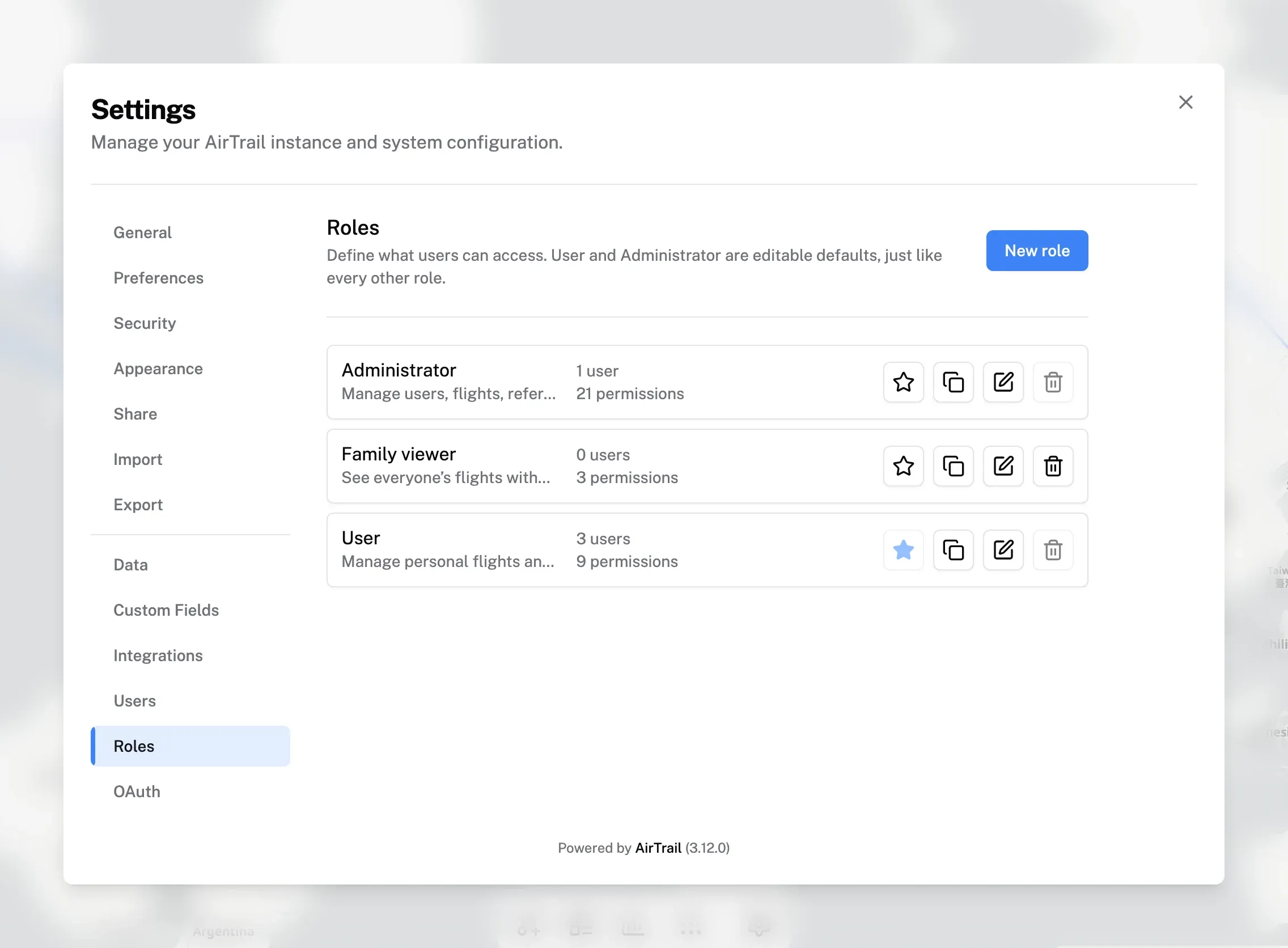
Open Settings → Roles. This tab is only shown to users who can manage roles. Each role shows its description, the number of users assigned to it, and the number of permissions it grants.
- New role creates an empty role.
- The copy icon (Duplicate role) opens a new role pre-filled with the
same permissions, named
<role> copy. - The pencil icon (Edit role) changes the name, description, and permissions.
- The trash icon (Delete role) deletes the role.
- The star icon makes the role the default role.
Role names must be unique. Names are compared without regard to case.
A role can only be deleted when:
- it is not the default role,
- no users are assigned to it, and
- no OAuth role mapping rule uses it.
The permission editor
The role editor lists permissions in four groups. Each row has a Read and a Write checkbox, or only one of them when the other does not apply. A checkbox turns on every permission behind it. Hover over a checkbox to see the permissions it covers.
- Write includes Read. Checking Write also checks Read on the same row and locks it. The tooltip shows Included by Write access.
- All flights includes Your flights. Checking a column on All flights also covers the same column on Your flights. The tooltip shows Included by All flights.
- You can only grant what you have. Permissions you do not hold yourself are disabled. A checkbox shows a partial state when only some of its permissions are selected.
Flights
"Own" flights are flights where the user is a passenger. "Any" flights are all flights on the instance.
| Row | Column | Permission | Allows |
|---|---|---|---|
| Your flights | Read | flight.read.own | View flights where the user is a passenger. |
| Your flights | Read | flight.export.own | Export personal flight data. |
| Your flights | Write | flight.create.own | Create flights that include the user as a passenger. |
| Your flights | Write | flight.update.own | Edit flights where the user is a passenger. |
| Your flights | Write | flight.delete.own | Delete flights where the user is a passenger. |
| Your flights | Write | flight.import.own | Import personal flight data. |
| Your flights | Write | flight.passengers.manage.own | Add, edit, or remove passengers on participating flights. |
| Your flights | Write | flight.share.own | Publish personal flight data through public share links. |
| All flights | Read | flight.read.any | View every user's flights, tracks, and statistics. |
| All flights | Read | flight.export.any | Export any user's or all users' flight data. |
| All flights | Write | flight.create.any | Create flights without being a passenger. |
| All flights | Write | flight.update.any | Edit any user's flight. |
| All flights | Write | flight.delete.any | Delete any user's flight. |
| All flights | Write | flight.import.any | Import data for any user. |
| All flights | Write | flight.passengers.manage.any | Add, edit, or remove passengers on any flight. |
Each .any permission includes the matching .own permission. There is no
.any version of flight.share.own: public share links only ever publish the
user's own flights.
The two columns are independent. For example, a role can read All flights but only write Your flights.
Users
| Row | Column | Permission | Allows |
|---|---|---|---|
| Users | Read | users.directory.read | See users in selectors and settings. |
| Users | Write | users.create | Create local user accounts. |
| Users | Write | users.update | Edit users with fewer permissions. |
| Users | Write | users.delete | Delete users with fewer permissions. |
| Users | Write | users.roles.assign | Assign roles that do not exceed the actor's permissions. |
Data and configuration
| Row | Column | Permission | Allows |
|---|---|---|---|
| Airports | Write | data.airports.manage | Create, edit, delete, and synchronize airports. |
| Aircraft | Write | data.aircraft.manage | Create, edit, delete, and synchronize aircraft. |
| Airlines | Write | data.airlines.manage | Create, edit, delete, and synchronize airlines and icons. |
| Custom fields | Write | custom_fields.manage | Create and change custom-field definitions. |
| Instance settings | Read | instance.release.check | Check for and display newer AirTrail releases. |
| Instance settings | Write | instance.oauth.manage | Configure OAuth and role mappings. |
| Instance settings | Write | instance.integrations.manage | Configure external data integrations. |
| Instance settings | Write | instance.map.manage | Configure instance-wide map styles. |
Security and tools
| Row | Column | Permission | Allows |
|---|---|---|---|
| Roles | Write | roles.manage | Create and edit roles without granting unavailable permissions. |
| SQL console | Write | tools.sql.execute | Run arbitrary SQL against the AirTrail database. |
SQL console bypasses every other permission. Anyone with it can read and change all data in the database, including other users' accounts. See SQL console.
Default role
The default role is marked with a filled star in Settings → Roles. It is:
- pre-selected when you add a user under Settings → Users, and
- given to new OAuth accounts when OAuth role mapping is off or no mapping rule matches.
To change it, click the star next to another role. This requires the Roles, Users write, and Instance settings write (OAuth) permissions, and you must be able to assign the role yourself. The default role cannot be deleted.
Assigning roles to users
Assign roles under Settings → Users when adding or editing a user. AirTrail limits what each user can do here:
- Changing a user's role requires
users.roles.assign. - The Role list only shows roles whose permissions you have yourself.
- You can only edit or delete users whose role has strictly fewer permissions than yours. Users with the same permissions as you are read-only.
- Adding a user requires both
users.createandusers.roles.assign. - The owner can edit and delete every other user.
- Users who can see Settings → Users (
users.directory.read) can delete their own account there, even withoutusers.delete. The owner cannot. Flights where they were the only passenger are deleted with the account.
The same rule applies to roles. You cannot create a role, or edit or delete an existing role, if it contains a permission you do not have.
Role changes apply to the user's next request. The user does not need to sign out.
OAuth role mapping
If you use OAuth, AirTrail can assign roles based on claims from your identity provider, such as group membership. Configure this under Settings → OAuth, in the Role assignment section.
When rules run
Choose an option under When should rules run?:
| Option | Behavior |
|---|---|
| Off | Rules are saved but inactive. New OAuth accounts receive the default role. |
| When a new OAuth account is created | Rules pick the role once, when AirTrail creates an account for a new OAuth user. |
| At every OAuth login | Rules are evaluated on every OAuth login, and the user's role is updated if it changed. |
Users without a matching rule receive the default role.
Manual role assignments are never overwritten. When someone changes a user's role under Settings → Users, that user is no longer managed by OAuth rules. Users managed by OAuth rules are marked OAuth next to their role in Settings → Users.
Accounts created while role assignment is Off are treated as manually assigned. Turning on At every OAuth login later does not change their roles.
Rules
Click Add rule (or Add first rule). Rules run from top to bottom, and the first match wins. Use the arrow buttons to change the priority.
Each rule has:
- Name (optional).
- Enabled: disabled rules are skipped.
- Claim source: UserInfo (fetched from the provider) or ID token (returned during login).
- Claim path: a JSON Pointer to the claim, such as
/groupsor/realm_access/roles. - Comparison:
- Equals matches a single text, number, or true/false value exactly.
- Contains matches a substring of a text claim, or an exact item in an array claim.
- Expected value: the value to match. Matching is case-sensitive.
- AirTrail role: the role to assign when the rule matches.
For example, to make members of an airtrail-admins group administrators:
| Field | Value |
|---|---|
| Claim source | UserInfo |
| Claim path | /groups |
| Comparison | Contains |
| Expected value | airtrail-admins |
| AirTrail role | Administrator |
Many providers only include /groups when a group scope or claim mapper is
configured. If a rule uses /groups and the OAuth Scope setting does not
include groups, AirTrail shows a warning. Check your provider's
documentation.
Testing rules
Open Test with sample claims, paste the UserInfo and ID token claims from a recent sign-in as JSON, and click Test rules. AirTrail uses the same evaluator as the login flow and shows which role would be assigned. When no rule matches, it explains why each rule failed, for example a missing claim or a case mismatch. The sample is not saved.
Saving
Click Save role assignment. With At every OAuth login, the button reads Publish policy. You must test the current draft first, and AirTrail asks you to confirm because existing OAuth-managed users may receive a different role on their next login.
To turn role assignment on, you must be able to assign the default role and every role used in the rules. See Assigning roles to users.
Last updated on